


optimatic.com is a domain name that belongs to Optimatic, an advertising company from USA, more specifically based on New York City. If you’re reading this page is because you’ve been puzzled with the meaning of this domain name. Optimatic, as most advertising companies, broadcasts publicity through their web servers, the problem is that this particular company doesn’t seem to thoroughly check their clients because many adware and unwanted programs have been using their services to make money.
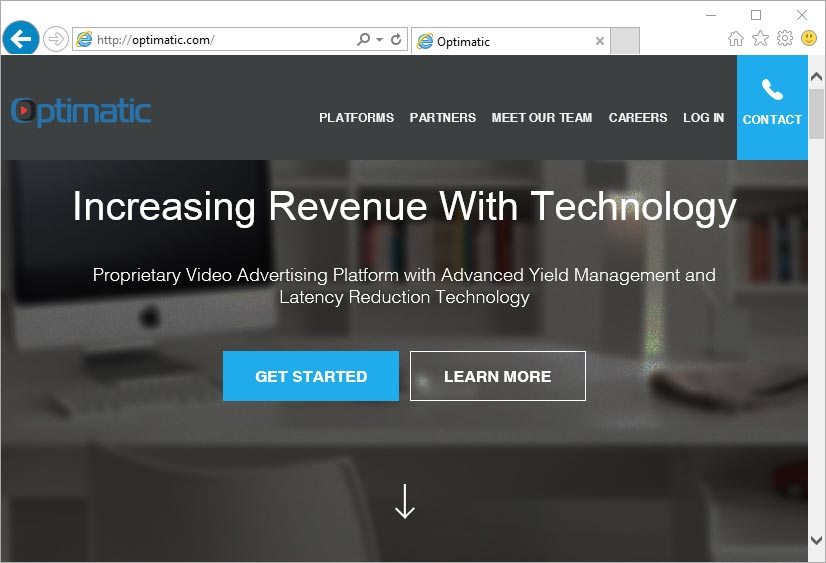
Optimatic is also neglecting the checking process of the actual ads shown by their clients, this is clear because is not uncommon to see ads pretending to be alert messages that are of course fake. These ads can come from several sources like: ntracking.optimatic.com, cdn.optimatic.com or delivery.optimatic.com.
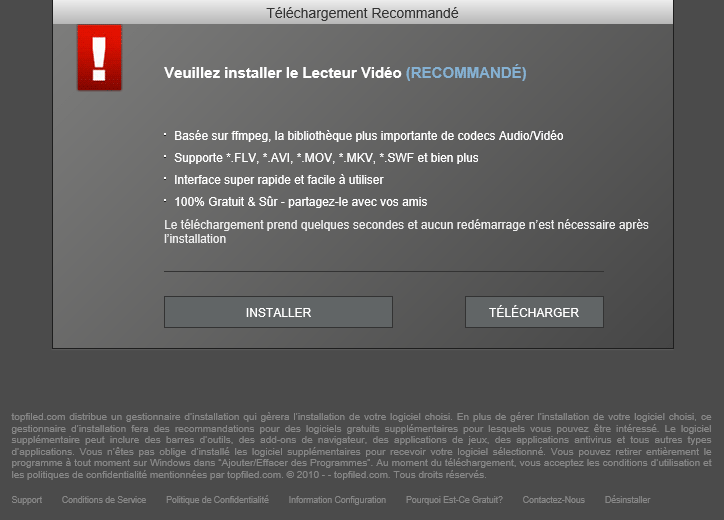
In the end is not Optimatic per se the problem, the real issue comes from the adware and unwanted programs using their advertising services to annoy you with endless and unexpected ads. To avoid this kind of issue you must be careful with anything you download from the net, specially when dealing with executable files that demand administrator privileges to work. When possible make sure to use the advance settings on install processes and never neglect reading what they are offering you.

How to remove optimatic.com ?
Remove optimatic.com with MalwareBytes Anti-Malware
Malwarebytes Anti-Malware is a light-weight anti-malware program that is excellent at removing the latest detections.
-
Download Malwarebytes Anti-Malware to your desktop.
Premium Version Free Version (without Real-time protection) - Install MalwareBytes Anti-Malware using the installation wizard.
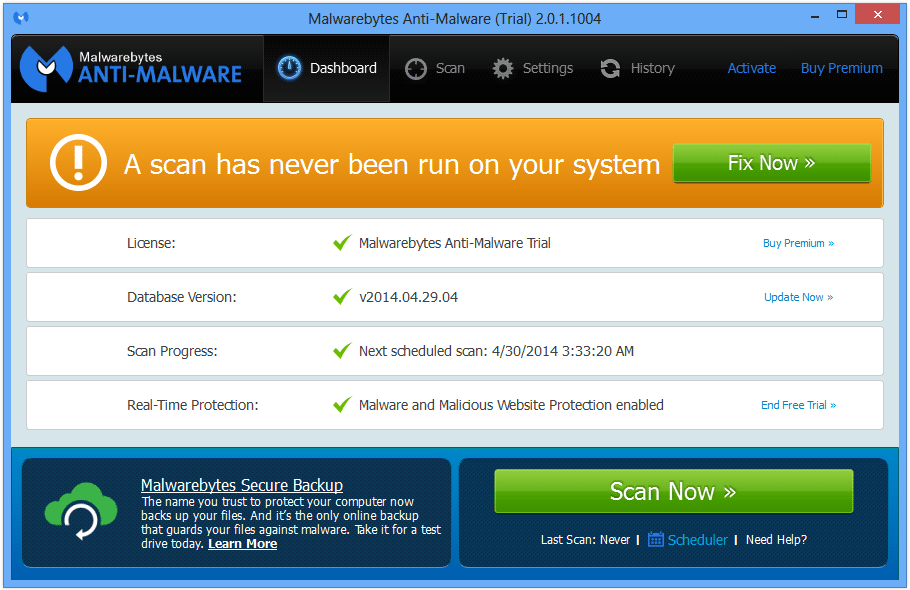
- Once installed, Malwarebytes Anti-Malware will automatically start and you will see a message stating that you should update the program, and that a scan has never been run on your system. To start a system scan you can click on the Fix Now button.
- If an update is found, you will be prompted to download and install the latest version.
- Malwarebytes Anti-Malware will now start scanning your computer for optimatic.com.
- When the scan is complete, make sure that everything is set to Quarantine, and click Apply Actions.
- When removing the files, Malwarebytes Anti-Malware may require a reboot in order to remove some of them. If it displays a message stating that it needs to reboot your computer, please allow it to do so.
Remove optimatic.com with AdwCleaner
The AdwCleaner program will scan your system and internet browser for optimatic.com, browser extensions and registry keys, that may have been installed on your computer without your consent.
-
You can download AdwCleaner utility from the below button :
Download AdwCleaner - Before starting AdwCleaner, close all open programs and internet browsers, then double-click on the file AdwCleaner.exe.
- If Windows prompts you as to whether or not you wish to run AdwCleaner, please allow it to run.
- When the AdwCleaner program will open, click on the Scan button.
- To remove malicious files that were detected in the previous step, please click on the Clean button.
- Please click on the OK button to allow AdwCleaner reboot your computer.
Remove optimatic.com with HitmanPro
HitmanPro is a second opinion scanner, designed to rescue your computer from malware. HitmanPro is designed to work alongside existing security programs without any conflicts. HitmanPro offers you a Free Scan for a second opinion.
-
You can download HitmanPro from the below link:
Download HitmanPro - Double-click on the file named HitmanPro.exe (for 32-bit versions of Windows) or HitmanPro_x64.exe (for 64-bit versions of Windows).
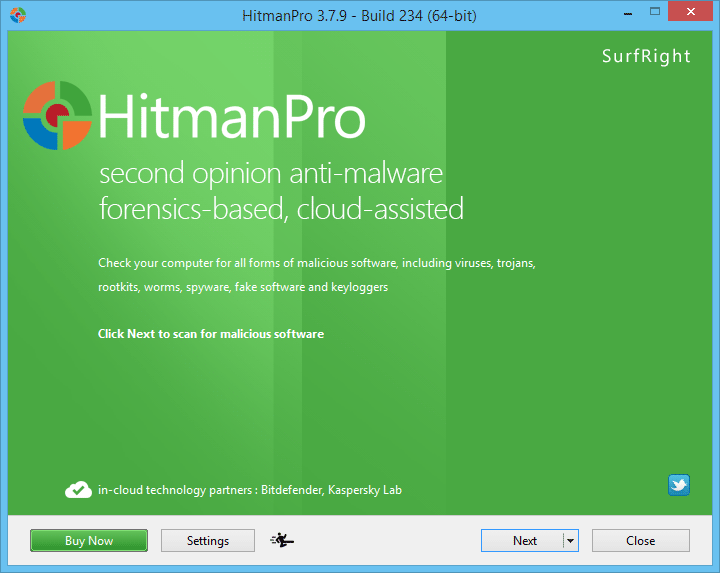
- Click on the Next button, to install HitmanPro on your computer.
- HitmanPro will now begin to scan your computer for optimatic.com malicious files.
- When it has finished it will display a list of all the malware that the program found as shown in the image below. Click on the Next button, to remove optimatic.com virus.
Click here to go to our support page.