


The site ISearch.Omiga-plus.com is related to Omiga Plus, a serious and very annoying browser hijacker. When you have your browser infected with it, this means that you will encounter ISearch.Omiga-plus.com opening up in the home page of your browser, and you will see Omiga Plus in the heading of this page. Many people would like to get rid of Omiga Plus, but they don’t know how to do it effectively. Referring to this guide will help you to remove Omiga Plus from your PC in an effective manner.

Keep in mind that a large number of potentially unwanted applications, such as Omiga Plus hijacker, get into computers together with many other free programs downloaded by users from various online resources. Thus, we all should all be very careful as to what exactly we are installing into our computers. Let us personally prevent installation of any additional junkware which we surely do not want.
When you deal with cost-free programs, you must always select the option of a custom installation, and not the standard one. It is also a good recommendation that you read the End User License Agreements of any cost-free programs you decide to install into your system. This is where you will be able to detect what exactly you are going to install in addition to the basic program of your selection.
To remove Omiga Plus from the home pages of all of your affected browsers and get rid of ISearch.Omiga-plus.com in them, we recommend you to scan your system with a powerful anti-malware program as shown below.
You should know that Omiga Plus is detected as a malware by 14 security software.
Show the other 10 anti-virus detections
How to remove Omiga Plus ?
Remove Omiga Plus with AdwCleaner
The AdwCleaner program will examine your system and internet browser for Omiga Plus, browser extensions and registry keys, that may have been put in your system without your permission.
-
You can download AdwCleaner utility from the below button :
Download AdwCleaner - Before starting AdwCleaner, close all open programs and internet browsers, then double-click on the file AdwCleaner.exe.
- If Windows prompts you as to whether or not you wish to run AdwCleaner, please allow it to run.
- When the AdwCleaner program will open, click on the Scan button.
- To remove malicious files that were detected in the previous step, please click on the Clean button.
- Please click on the OK button to allow AdwCleaner reboot your computer.
Remove Omiga Plus with MalwareBytes Anti-Malware
Malwarebytes Anti-Malware detects and removes malware like worms, Trojans, rootkits, rogues, spyware, and more. All you have to do is launch Malwarebytes Anti-Malware Free and run a scan. If you want even better protection, consider Malwarebytes Anti-Malware Premium and its instant real-time scanner that automatically prevents malware and websites from infecting your PC.
-
Download MalwareBytes Anti-Malware :
Premium Version Free Version (without Real-time protection) - Install MalwareBytes Anti-Malware using the installation wizard.
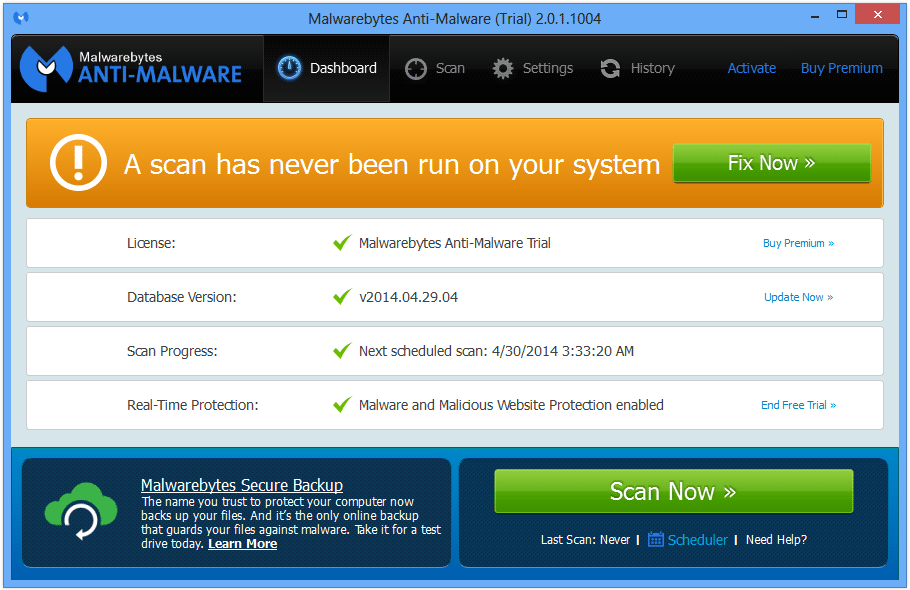
- Once installed, Malwarebytes Anti-Malware will automatically start and you will see a message stating that you should update the program, and that a scan has never been run on your system. To start a system scan you can click on the Fix Now button.
- Malwarebytes Anti-Malware will now check for updates, and if there are any, you will need to click on the Update Now button.
- Once the program has loaded, select Scan now.
- When the scan is done, you will now be presented with a screen showing you the malware infections that Malwarebytes’ Anti-Malware has detected. To remove the malicious programs that Malwarebytes Anti-malware has found, click on the Quarantine All button, and then click on the Apply Now button.
- When removing the files, Malwarebytes Anti-Malware may require a reboot in order to remove some of them. If it displays a message stating that it needs to reboot your computer, please allow it to do so.
Click here to go to our support page.