


Browser hijackers like searchassist.net never properly warn users of the consequences of having it installed on your computer. That’s why it’s quite a shocking surprise to see searchassist.net all the sudden replacing our default homepage and search engine when we were never asked about it.
searchassist.net is introduced in our computers in a bundle with some other programs. Therefore if it’s already installed we can be pretty sure that many other infections are also present in our systems. We usually find these bundles in P2P networks and download platforms whose sponsorship comes from this kind of adware.
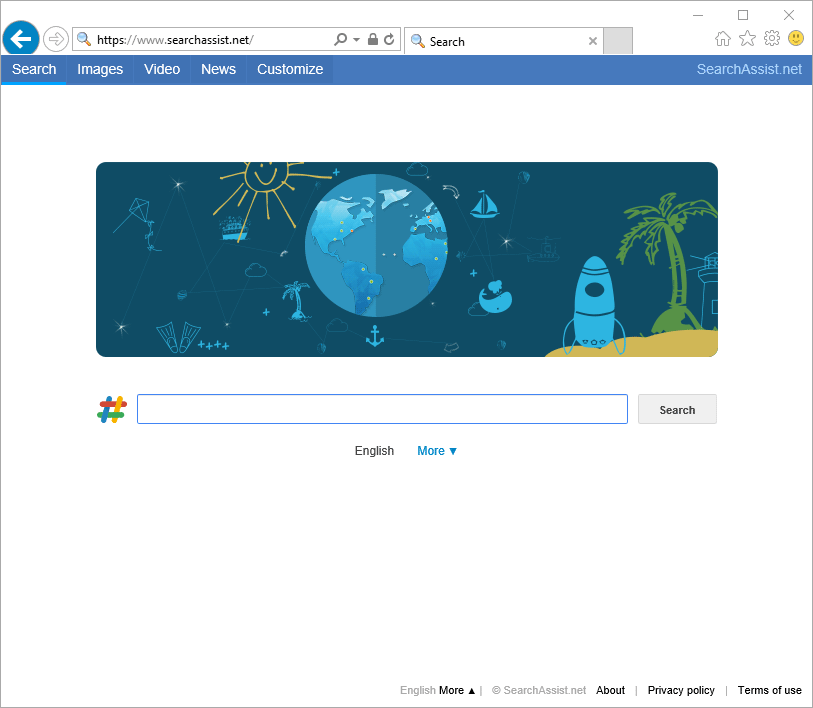
When searchassist.net is installed in our systems, it will instantly modify our web browser’s settings. searchassist.net becomes our default homepage and default search engine. Plus it usually shows ads in its homepage. It’s not uncommon to find it accompanied of other unwanted programs that will surely slow down your system.
If searchassist.net is present in your computer, you’ll probably notice that it shows ads within its search results. We strongly advice you against clicking on any of those ads, because it could expose you to even more serious threats. How is this possible? It’s quite easy actually. Every time you click on an ad you’ll be taken to an unknown website whose content might be malicious. This means that you could be putting your system in danger. You can reduce your risks by avoiding those ads. Don’t be naive, even if searchassist.net uses Google or Yahoo as base, it’s still dangerous.

How to remove searchassist.net ?
Remove searchassist.net with AdwCleaner
The AdwCleaner program will examine your computer and internet browser for searchassist.net, browser extensions and registry keys, that may have been put in your computer without your consent.
-
You can download AdwCleaner utility from the below button :
Download AdwCleaner - Before starting AdwCleaner, close all open programs and internet browsers, then double-click on the file AdwCleaner.exe.
- If Windows prompts you as to whether or not you wish to run AdwCleaner, please allow it to run.
- When the AdwCleaner program will open, click on the Scan button.
- To remove malicious files that were detected in the previous step, please click on the Clean button.
- Please click on the OK button to allow AdwCleaner reboot your computer.
Remove searchassist.net with MalwareBytes Anti-Malware
Malwarebytes Anti-Malware detects and removes malware like worms, Trojans, rootkits, rogues, spyware, and more. All you have to do is launch Malwarebytes Anti-Malware Free and run a scan. If you want even better protection, consider Malwarebytes Anti-Malware Premium and its instant real-time scanner that automatically prevents malware and websites from infecting your PC.
-
Download MalwareBytes Anti-Malware :
Premium Version Free Version (without Real-time protection) - Install MalwareBytes Anti-Malware using the installation wizard.
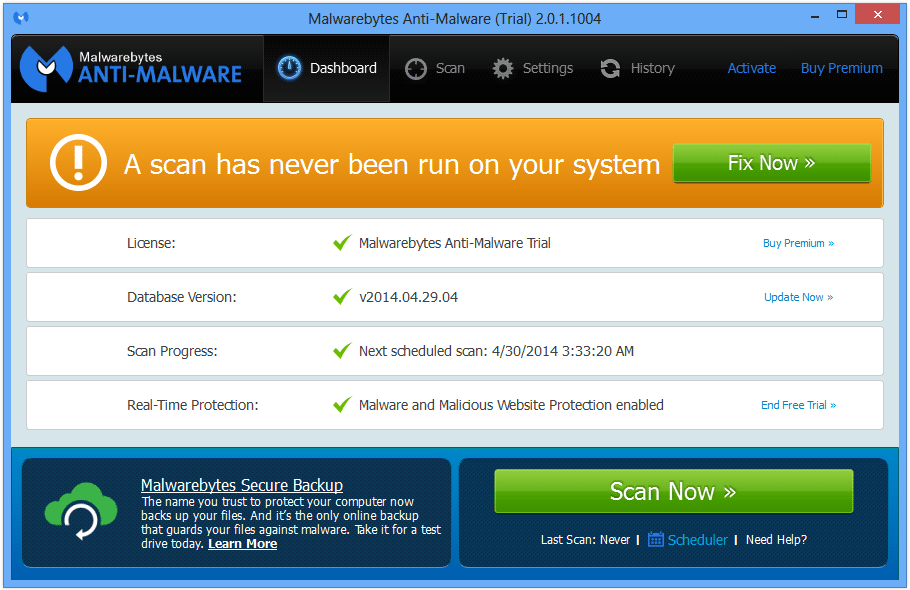
- Once installed, Malwarebytes Anti-Malware will automatically start and you will see a message stating that you should update the program, and that a scan has never been run on your system. To start a system scan you can click on the Fix Now button.
- Malwarebytes Anti-Malware will now check for updates, and if there are any, you will need to click on the Update Now button.
- Once the program has loaded, select Scan now.
- When the scan is done, you will now be presented with a screen showing you the malware infections that Malwarebytes’ Anti-Malware has detected. To remove the malicious programs that Malwarebytes Anti-malware has found, click on the Quarantine All button, and then click on the Apply Now button.
- When removing the files, Malwarebytes Anti-Malware may require a reboot in order to remove some of them. If it displays a message stating that it needs to reboot your computer, please allow it to do so.
Click here to go to our support page.