


Com Surrogate is not a virus, instead it is a process linked to Dllhost.exe. Com Surrogate might be overusing CPU resources even though is not a virus or a malware, it might not even be directly messing with dllhost.exe. It’s a lot simpler than that, all it takes is a pictures folder where a hidden file such as “desktop.ini” or “thumbs” has been corrupted. The affected folder is usually saved directly on the desktop. To check this go to : Computer / Properties / Advanced system settings / Performance (Settings) and make sure the option “Show thumbnails instead of icons” is deselected. If using Windows Process Explorer (https://technet.microsoft.com/en-us/sysinternals/processexplorer.aspx) you can right click the dllhost file causing the problem and kill it, the process won’t start again. To permanently fix the issue you must find the corrupted file.
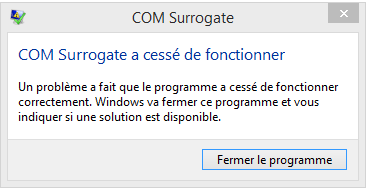
The resources overusing problem linked to Com Surrogate could be caused by a hidden file that was affected by a virus, most likely an adware. The best way to fix this is cleaning your computer with the help of the free tools recommended in our guide below.
Be aware though that if this a new and recent problem you could also roll back your system to a previous functional state.
How to remove Com Surrogate ?
Remove Com Surrogate with MalwareBytes Anti-Malware
Malwarebytes Anti-Malware detects and removes malware like worms, Trojans, rootkits, rogues, spyware, and more. All you have to do is launch Malwarebytes Anti-Malware Free and run a scan. If you want even better protection, consider Malwarebytes Anti-Malware Premium and its instant real-time scanner that automatically prevents malware and websites from infecting your PC.
-
Download MalwareBytes Anti-Malware :
Premium Version Free Version (without Real-time protection) - Install MalwareBytes Anti-Malware using the installation wizard.
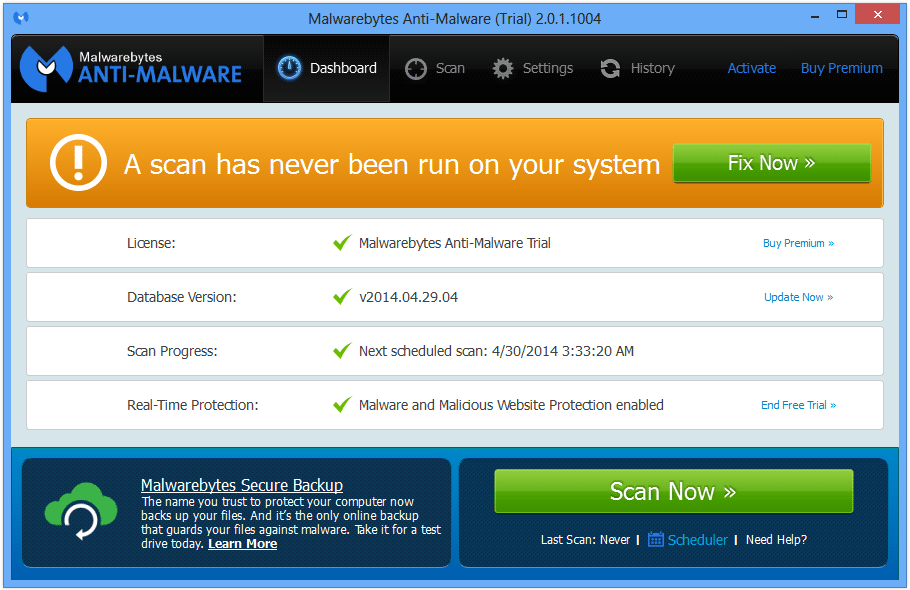
- Once installed, Malwarebytes Anti-Malware will automatically start and you will see a message stating that you should update the program, and that a scan has never been run on your system. To start a system scan you can click on the Fix Now button.
- Malwarebytes Anti-Malware will now check for updates, and if there are any, you will need to click on the Update Now button.
- Once the program has loaded, select Scan now.
- When the scan is done, you will now be presented with a screen showing you the malware infections that Malwarebytes’ Anti-Malware has detected. To remove the malicious programs that Malwarebytes Anti-malware has found, click on the Quarantine All button, and then click on the Apply Now button.
- When removing the files, Malwarebytes Anti-Malware may require a reboot in order to remove some of them. If it displays a message stating that it needs to reboot your computer, please allow it to do so.
Remove Com Surrogate with AdwCleaner
AdwCleaner is a tool that looks for and removes Adware, Toolbars, Potentially Unwanted Programs (PUP), and browser Hijackers from your pc. By using AdwCleaner you can simply get rid of many of these types of programs for a much better user experience on your pc and while browsing websites.
-
Download AdwCleaner (Official link and direct-download) :
Download AdwCleaner - Select AdwCleaner.exe with right mouse click and Run as Administrator.
- If User Account Control asks you to allow AdwCleaner.exe to make changes to your computer, press Yes to continue.
- Start scanning your computer for any malicious threats by selecting the Scan button, please wait.
- If AdwCleaner is done, it will display a list of malicious items detected, If you have nothing to uncheck, continue to the removal process and select the Clean button.
- Reboot your computer.
Remove Com Surrogate with HitmanPro
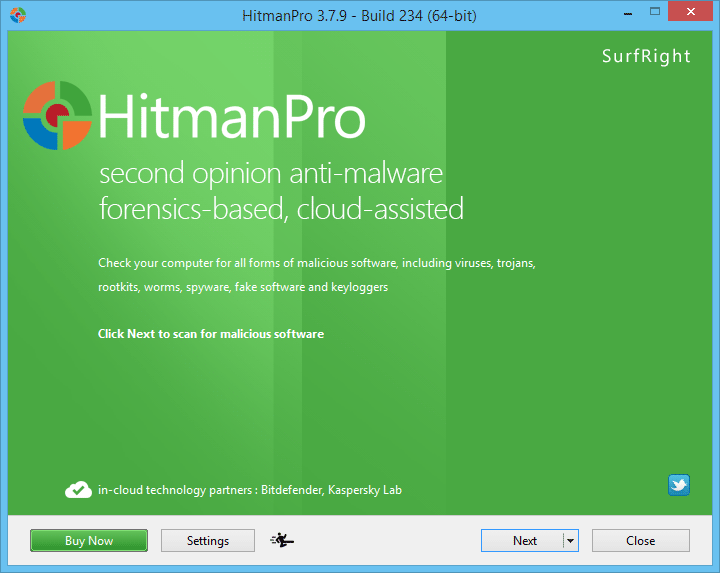
HitmanPro is a second opinion scanner, designed to rescue your computer from malware. HitmanPro is designed to work alongside existing security programs without any conflicts. HitmanPro offers you a Free Scan for a second opinion.
-
You can download HitmanPro from the below link:
Download HitmanPro - Double-click on the file named HitmanPro.exe (for 32-bit versions of Windows) or HitmanPro_x64.exe (for 64-bit versions of Windows).
- Click on the Next button, to install HitmanPro on your computer.
- HitmanPro will now begin to scan your computer for Com Surrogate malicious files.
- When it has finished it will display a list of all the malware that the program found as shown in the image below. Click on the Next button, to remove Com Surrogate virus.
Click here to go to our support page.