


luckysite123.com is an unwanted website that was installed without your conscious knowledge nor approval in all browsers present on your system, replacing both default homepage and default search engine. We classify such programs as browser hijackers. Developers behind this kind of malware are looking for an effective way to increase web traffic, broadcast huge amounts of ads, and promote or manipulate your browsing towards specific websites.

If your try to manually modify your browser’s settings to go back to pages of your own choice, you’ll be facing almost instant frustration because luckysite123.com will make sure to replace yet again your settings. In fact this unwanted program was made to include several techniques to make sure to stay installed in your computer as long as possible. Besides your antivirus won’t help you because it won’t detect luckysite123.com as a threat, mainly because it’s not a real virus, plus it gives the impression that you install it on your own accord.
Usually luckysite123.com is offered with freeware installers. If you’re not careful enough when installing something new, you won’t notice all the optional programs being offered at the same time as the chosen freeware. This is how you end up with a computer filled with unwanted programs like luckysite123.com.
You should know that the page luckysite123.com is considered as suspicious by Fortinet.

How to remove luckysite123.com ?
Remove luckysite123.com with MalwareBytes Anti-Malware
Malwarebytes Anti-Malware detects and removes malware like worms, Trojans, rootkits, rogues, spyware, and more. All you have to do is launch Malwarebytes Anti-Malware Free and run a scan. If you want even better protection, consider Malwarebytes Anti-Malware Premium and its instant real-time scanner that automatically prevents malware and websites from infecting your PC.
-
Download MalwareBytes Anti-Malware :
Premium Version Free Version (without Real-time protection) - Install MalwareBytes Anti-Malware using the installation wizard.
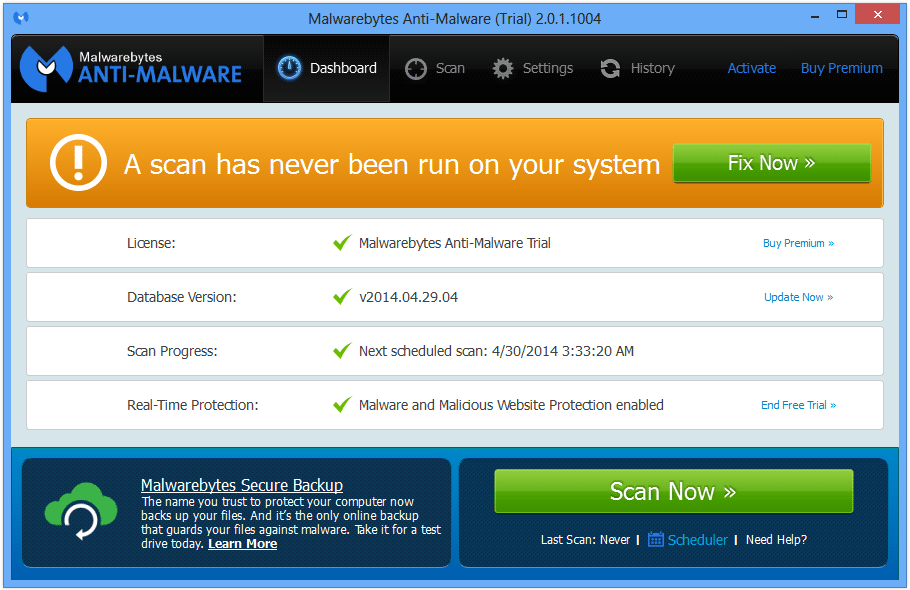
- Once installed, Malwarebytes Anti-Malware will automatically start and you will see a message stating that you should update the program, and that a scan has never been run on your system. To start a system scan you can click on the Fix Now button.
- Malwarebytes Anti-Malware will now check for updates, and if there are any, you will need to click on the Update Now button.
- Once the program has loaded, select Scan now.
- When the scan is done, you will now be presented with a screen showing you the malware infections that Malwarebytes’ Anti-Malware has detected. To remove the malicious programs that Malwarebytes Anti-malware has found, click on the Quarantine All button, and then click on the Apply Now button.
- When removing the files, Malwarebytes Anti-Malware may require a reboot in order to remove some of them. If it displays a message stating that it needs to reboot your computer, please allow it to do so.
Remove luckysite123.com with AdwCleaner
AdwCleaner is a very useful tool developed to remove undesired toolbars, browser hijackers, redirects and potentially unwanted programs (PUPs) in Internet Explorer, Firefox, Chrome or Opera. AdwCleaner needs no installation and can be ran in a instantaneous to scan your pc.
-
Please download AdwCleaner by Xplode and save to your Desktop :
Download AdwCleaner - Double-click on AdwCleaner.exe to run the tool (Windows Vista/7/8 users : right-click and select Run As Administrator).
- Click on the Scan button.
- After the scan has finished, click on the Clean button..
- Press OK again to allow AdwCleaner to restart the computer and complete the removal process.
Reset default homepage (if necessary)
- Open Google Chrome then go to the three stripes in the right top corner
- Select Settings
- Go to the header: On Startup
- Click on the blue link: Set Pages behind Open a specific page or set of pages
- Remove the actual homepage by clicking the X icon.
- Enter a new homepage of your choice in textbox "Enter Url..."
- Go to the header: Search
- Click on the button: Manage search engines
- Select Google.com from the list, hover over it and click blue button Make Defaults
- Hover over luckysite123.com and click the X to remove it from the list.
- Open Mozilla Firefox and at the top of the Firefox window, click the Firefox button, then select Options
- Click on the General tab.
- Replace the homepage with one of your choice and click on OK.
- Open Internet Explorer
- Click on the gear icon
 , in the upper right part of your browser, then click again on Internet Options..
- Click on the General tab.
- Replace the homepage with one of your choice, for example: google.com
 , in the upper right part of your browser, then click again on Internet Options..
Click here to go to our support page.