


Zingload a website found at search.zingload.com, is a browser hijacker. As clearly told by its name, Zingload hijacks your browser’s settings replacing them with its own configuration choices. This is not a piracy case where you’re data is in danger, because what Zingload goes after is your default homepage, default search engine, new tab and sometimes the 404 page.
Zingload becomes annoying because it makes sure the user has no means to change back the hijacked settings to recover his/her preferences. To do this it supports itself in a Windows’ service or process that will be on charge of reinstating Zingload’s settings over and over again. What’s the goal behind this?… simply to force the user to use the alleged search engine found at search.zingload.com

This search engine shows ads that might take you to websites or programs that are best to be kept at distance. In the screen shot shown above, we can see Zingload offering Reimage Repair install, a program with a really bad reputation. Ads are cleverly hidden among the search results usually in the very first positions.
To get rid of Zingload the simpler choice is to use free programs like the ones offered here. We have put together a guide with the best programs available to remove not only Zingload but also any other unwanted program that might be lurking around your system without you knowing anything about it.

How to remove Zingload ?
Remove Zingload with AdwCleaner
The AdwCleaner tool will examine your computer and internet browser for Zingload, browser extensions and registry keys, that may have been installed on your system without your agreement.
-
You can download AdwCleaner utility from the below button :
Download AdwCleaner - Before starting AdwCleaner, close all open programs and internet browsers, then double-click on the file AdwCleaner.exe.
- If Windows prompts you as to whether or not you wish to run AdwCleaner, please allow it to run.
- When the AdwCleaner program will open, click on the Scan button.
- To remove malicious files that were detected in the previous step, please click on the Clean button.
- Please click on the OK button to allow AdwCleaner reboot your computer.
Remove Zingload with MalwareBytes Anti-Malware
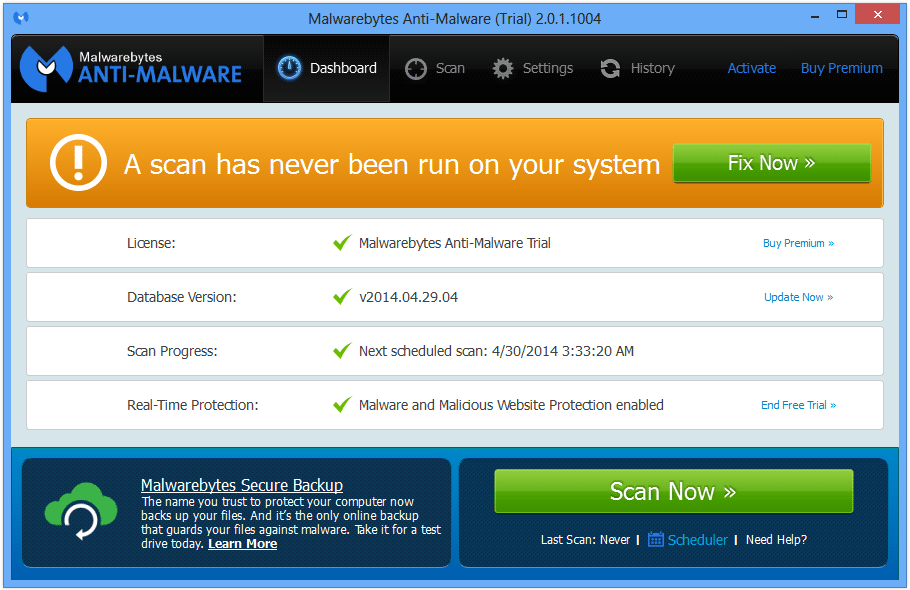
Malwarebytes Anti-Malware is an important security program for any computer user to have installed on their computer. It is light-weight, fast, and best of all, excellent at removing the latest infections like Zingload.
-
Download MalwareBytes Anti-Malware :
Premium Version Free Version (without Real-time protection) - Double-click mbam-setup-consumer.exe and follow the prompts to install the program.
- Once installed, Malwarebytes Anti-Malware will automatically start and you will see a message stating that you should update the program, and that a scan has never been run on your system. To start a system scan you can click on the Fix Now button.
- Malwarebytes Anti-Malware will now check for updates, and if there are any, you will need to click on the Update Now button.
- Malwarebytes Anti-Malware will now start scanning your computer for Zingload.
- When the scan is done, you will now be presented with a screen showing you the malware infections that Malwarebytes’ Anti-Malware has detected. To remove the malicious programs that Malwarebytes Anti-malware has found, click on the Quarantine All button, and then click on the Apply Now button.
- Reboot your computer if prompted.
Reset default homepage (if necessary)
- Open Google Chrome then go to the three stripes in the right top corner
- Select Settings
- Go to the header: On Startup
- Click on the blue link: Set Pages behind Open a specific page or set of pages
- Remove the actual homepage by clicking the X icon.
- Enter a new homepage of your choice in textbox "Enter Url..."
- Go to the header: Search
- Click on the button: Manage search engines
- Select Google.com from the list, hover over it and click blue button Make Defaults
- Hover over Zingload and click the X to remove it from the list.
- Open Mozilla Firefox and at the top of the Firefox window, click the Firefox button, then select Options
- Click on the General tab.
- Replace the homepage with one of your choice and click on OK.
- Open Internet Explorer
- Click on the gear icon
 , in the upper right part of your browser, then click again on Internet Options..
- Click on the General tab.
- Replace the homepage with one of your choice, for example: google.com
 , in the upper right part of your browser, then click again on Internet Options..
Click here to go to our support page.